
Configuring Input Connections
This section describes how to establish the connection to the Sentinel Platform, which is the data source for the Sentinel Pulse app.
To configure the input connection:
1.In the top-left of the screen, click App Launcher  and search for Data Manager.
2.In Data Manager, click Connections.
3.In the top-right of the screen, click New Connection.
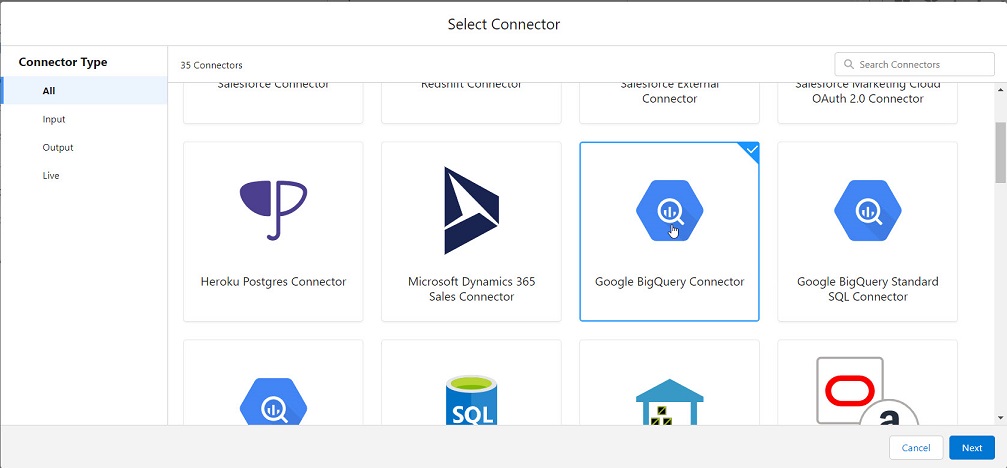
4.Select Google BigQuery Connector, and then click Next.
5.In the Set Up Your Connection box, define the Input Connection Settings.
6.Click Save and Test.
When the connection is saved and tested, the following message is displayed on the screen:
Sentinel Pulse Input Google BigQuery Connector Connection have been created and tested successfully .
7.Select all the objects, and under each object, select all the columns.
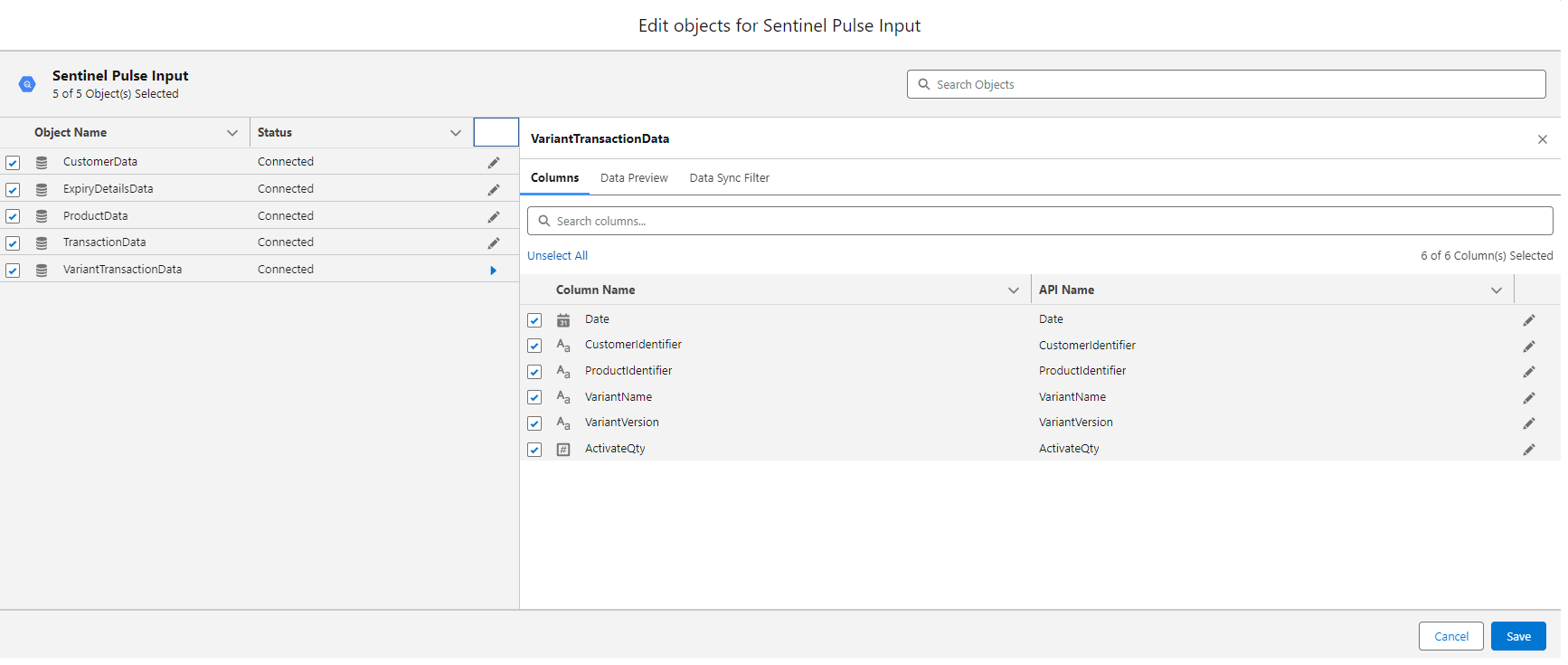
8.Click Save.
To verify that the connection is added: From Data Manager, navigate to Connections, Sentinel Pulse Input must be available under Input.
Input Connection Settings
The Thales Sentinel Pulse - Configuration email includes the values for Connection Name, Developer Name, Description, Client Email, Project ID and Schema.
Use these values exactly how they are mentioned on the email to avoid errors during installation.
| Field | Description |
|---|---|
| Connection Name | Name of the input connection. |
| Developer Name |
API name for the connection. This name cannot include spaces. Note: You cannot change the developer name after the connection is created. |
| Description | Description for your connection. |
| Client Email |
The "Thales Sentinel Pulse - Configuration" email has Client Email value. |
| Private Key |
Private Key that the connector uses to connect to the BigQuery dataset. The "Thales Sentinel Pulse - Configuration" email has an EMS configuration page link, which you can use to generate private key. For more details, see the Generate Sentinel Pulse Connection Private Key section below. |
| Project ID |
ID of the project. |
| Schema | Schema name of the BigQuery dataset. |
Generate Sentinel Pulse Connection Private Key
You can obtain the Private Key from Sentinel EMS using the following links:
A sample private key as retrieved from Sentinel EMS.
